A wedding slideshow is no longer just photos sliding by to music. Couples now want a video that opens like an invitation card, follows the rhythm of the song and, above all, can be posted to TikTok and Reels the day they receive their photos. Here are the styles being shared most, and how a studio can produce them quickly.
1. Save-the-date style intros
The first three to six seconds show the couple's names, the wedding date and handwritten lettering on paper or silk — just like an invitation. It keeps viewers watching and makes the video feel designed rather than stitched together.
- Torn paper, three photos and art paper, three photos: three frames on a paper background with torn edges, great for documentary shots.
- Beige handwritten and silk with dancing / soft lettering: light cream tones and handwriting, ideal for Korean-style wedding photos.
- Classic red and gold and wedding date, three photos: a natural fit for engagement and ancestral ceremonies.
Use the same style for the ending so the video feels complete, with the studio logo at the end.
2. Printed-photo frames and blurred backgrounds for portrait shots
Most wedding photos are portrait, while the delivery video is landscape. Instead of black bars on both sides, the current trend is to place the photo in a white printed-photo frame over a blurred copy of itself. Faces are never cropped and the frame still feels full.
3. Vertical 9:16 for TikTok and Reels
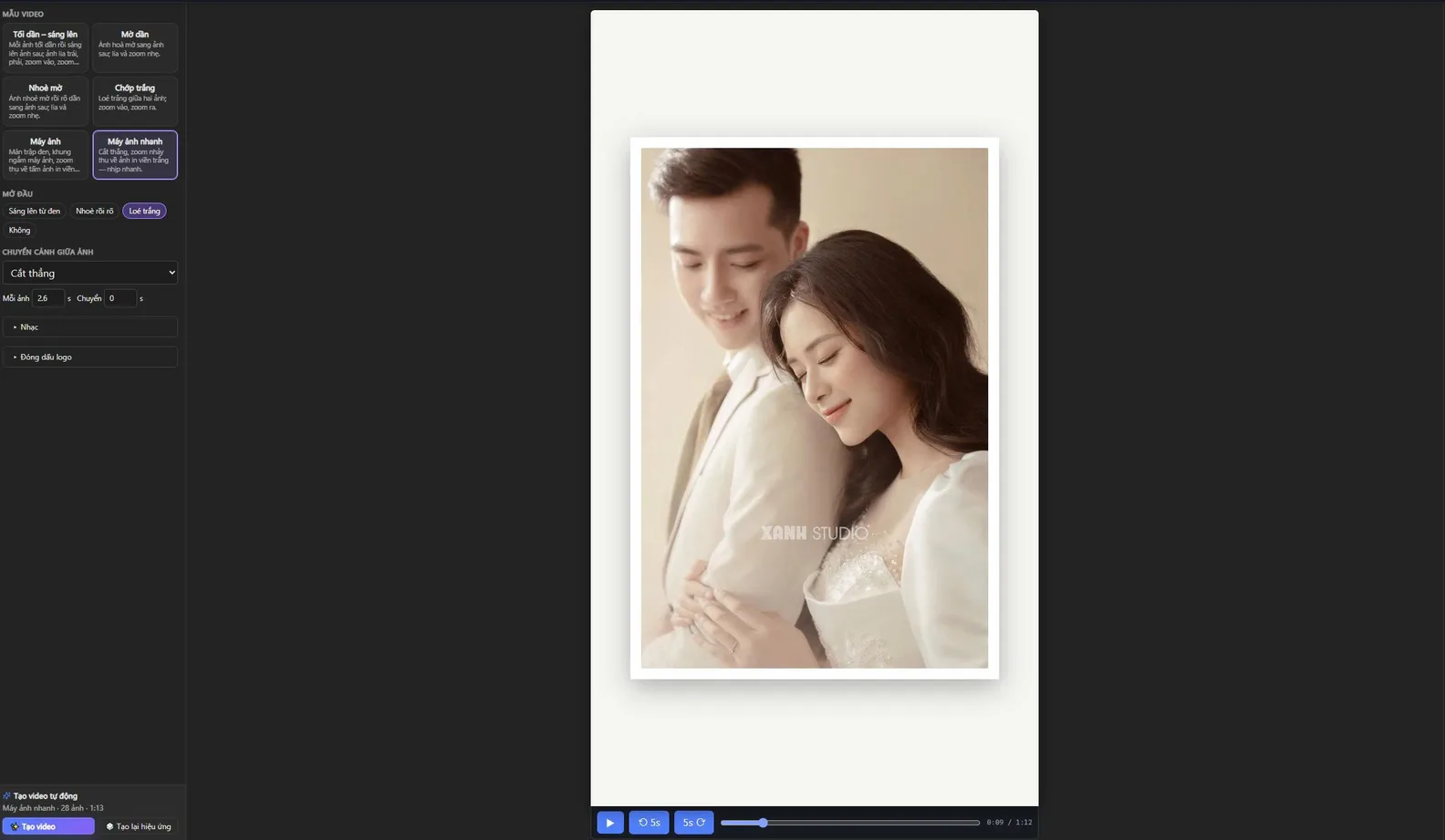
Landscape videos are for the reception screen and for the client; vertical videos are what clients post and what studios use for marketing. Keep them short (around 30–75 seconds), fast-paced, with camera-style effects — shutter, white flash, punch zoom — to stop the scroll.
4. 3D page-flip videos from the finished album
Once the album is designed, a video that flips through the book in 3D is a great way to show the client before printing, or to promote your album designs.
How to make a wedding slideshow quickly in Snaply Album
- Add photos: use the album project's photos, or send the photos you just culled straight from the Cull tab to Video Slide.
- Pick an intro and ending (torn paper, beige handwritten, classic red and gold…) and click Customize template to change names and date.
- Click Auto create: the app picks an effect for each photo based on its orientation and keeps faces centered when zooming. Not happy? Regenerate effects.
- Adjust the pacing: seconds per photo, transition length, background style; pick the music.
- Export MP4 for the client. For a vertical version, switch to Vertical Video, choose a style (Fast camera, White flash, Fade…) and export again.
Tips for videos that get shared
- Put your best photo right after the intro — viewers decide within the first seconds.
- Match colors before making the video: inconsistent tones stand out when photos play back to back.
- Add a small logo in a corner, never over faces; reshared videos still carry your studio name.
- Deliver both landscape and vertical — clients almost always post the vertical one.
See also the wedding slideshow guide, how to cull wedding photos fast, or download Snaply Album to try it.