Auto Design with template sets lays out every photo in the album using layouts that share one style, so the whole album is consistent from the very first draft.
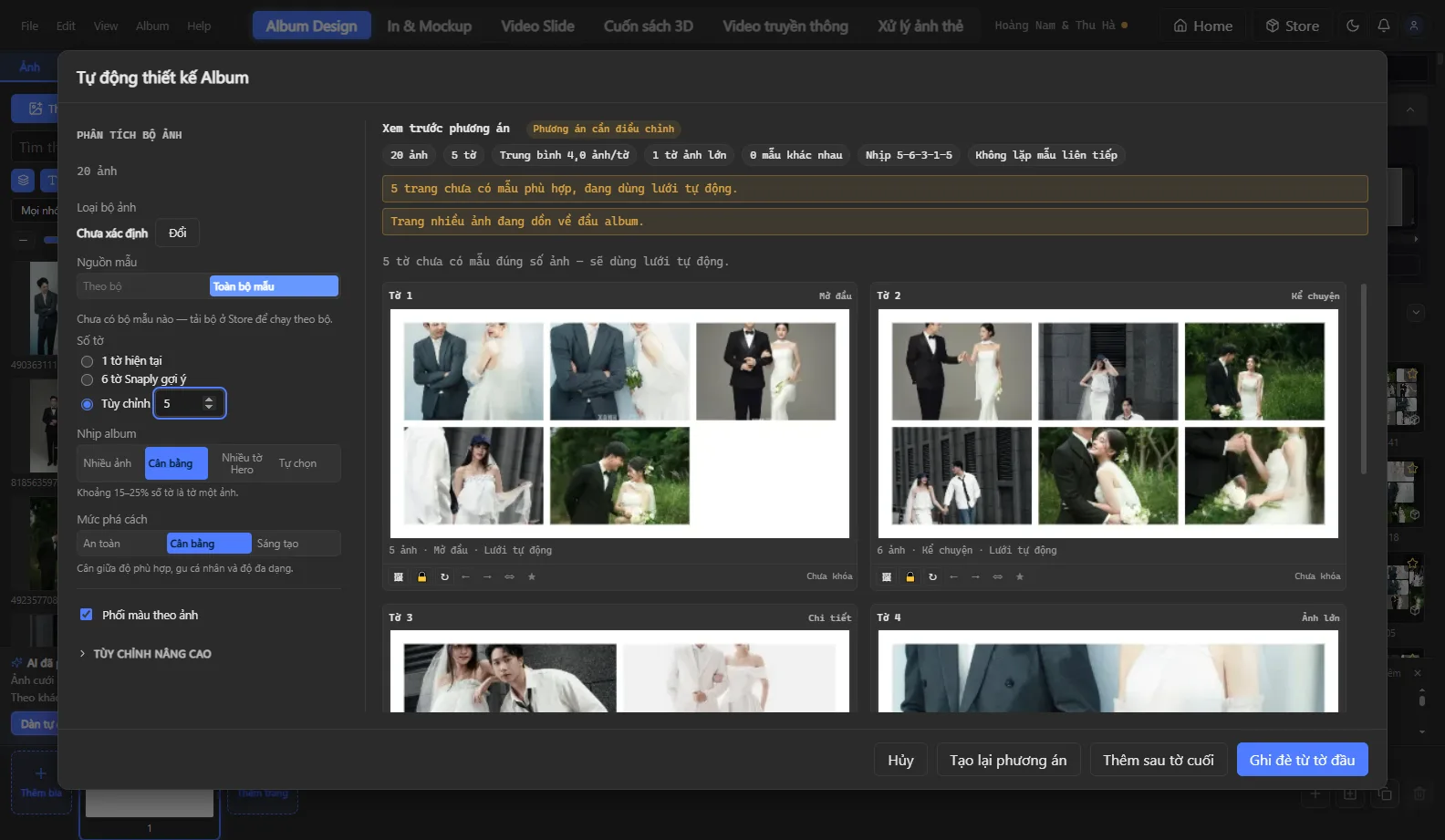
Steps
- Create an album (Print album or Social media album) and import your selected photos into the Photos tab.
- Open the Auto Design dialog, click Choose set… under Template source and pick a set — one from Snaply or your own.
- Keep Match colors to photos checked (on by default) so text and decoration colors match each page's photo tones.
- Run it. The set's opening / closing pages are placed automatically at the start and end of the album.
Tips for better results
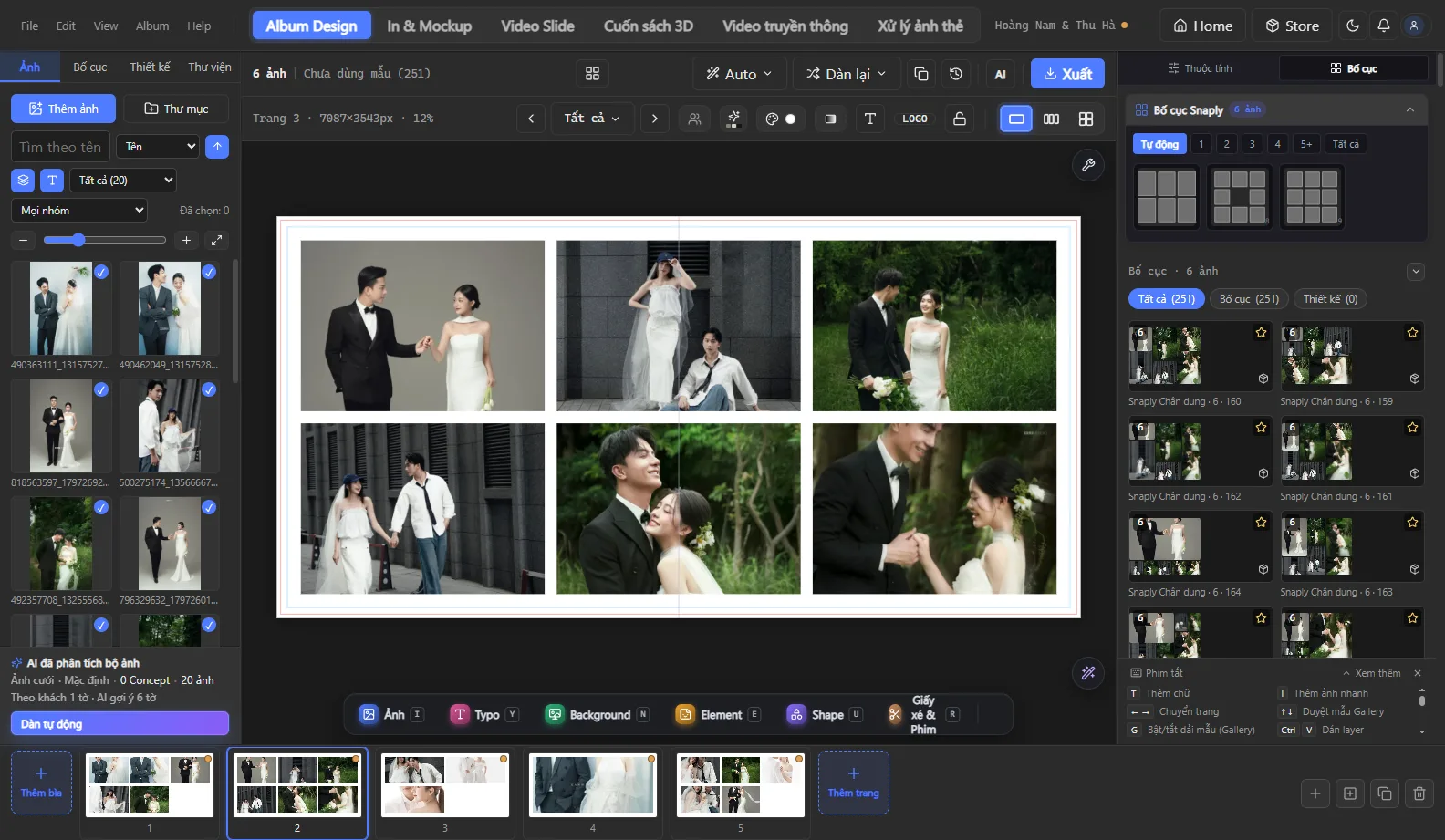
- Auto face framing: faces are placed on the upper third line of the frame; you can turn this off in Settings.
- Auto Design strictly matches photo orientation (portrait photos go into portrait frames) and moves near-duplicate photos onto different pages.
- After running, use ←/→ to switch the template of the selected page, or switch to multi-spread view to swap photos between pages.
Create your studio's own template set
Save the pages you love as templates and group them into a set, or import a whole folder of PSDs as a set. Next time, Auto Design will lay out albums in your studio's signature style.
See also: all features · help center · download Snaply Album.