Wedding photos are shot in many settings (indoors, outdoors, evening receptions), so colors easily drift apart. Snaply Album includes Lightroom-style color adjustments right in the photo's Properties panel.
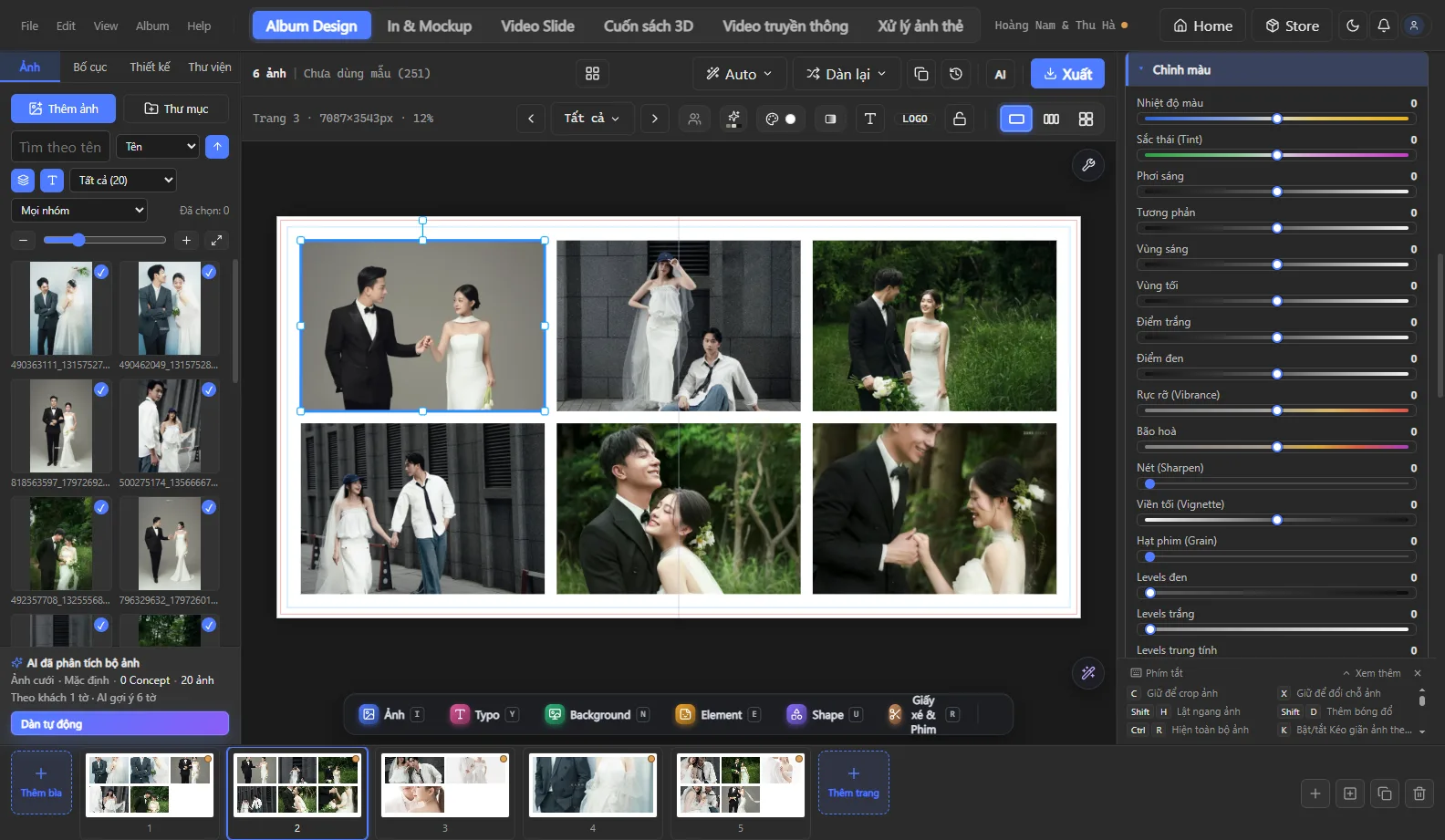
Grade a single photo
- Select a photo on the page and open the Color section in the right panel.
- Start with Temperature and Tint to set white balance — each slider shows a color gradient so you know which way to drag.
- Adjust Exposure, Contrast, Highlights / Shadows, and finally Vibrance.
- Hold the
\key or click “Original” to compare before / after.
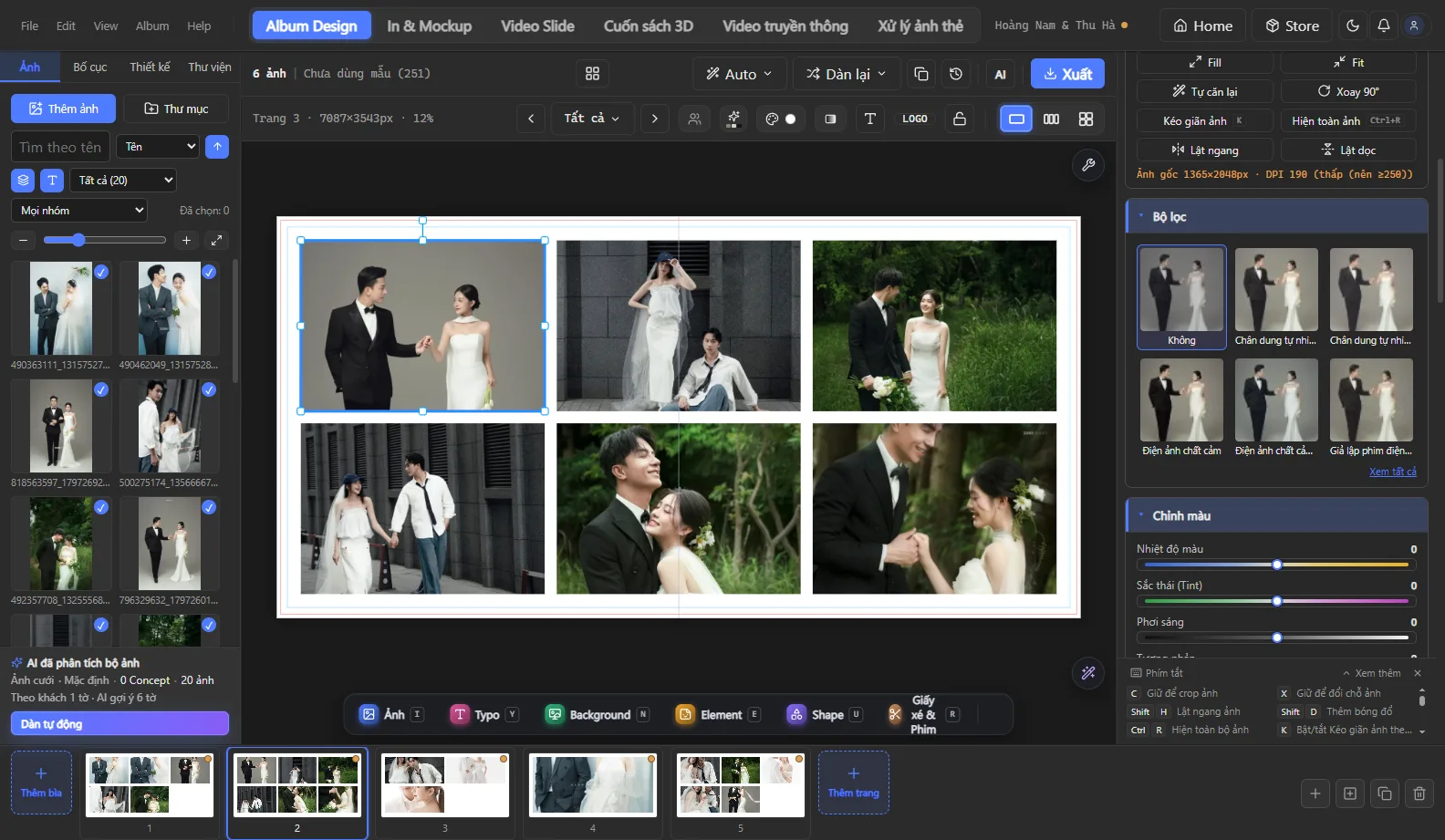
Apply consistent color across a page or the whole album
- Right-click the color adjustment group to copy, paste or apply it to the whole page.
- Use the built-in color filters to give the entire album one consistent tone.
- SmartColor picks the photo's dominant colors to match text, backgrounds and decorations.
Blur and Motion Blur
Background images and image elements also get Blur, Motion Blur and Brightness. Sliders always stay smooth; while the app is processing, a small spinner appears in the bottom corner of the canvas.
See also: all features · help center · download Snaply Album.