Besides albums, wedding studios also print enlargements, desk prints and gate photos. The Print crop, mockups & gate photos mode brings all of this together in a dedicated print project.
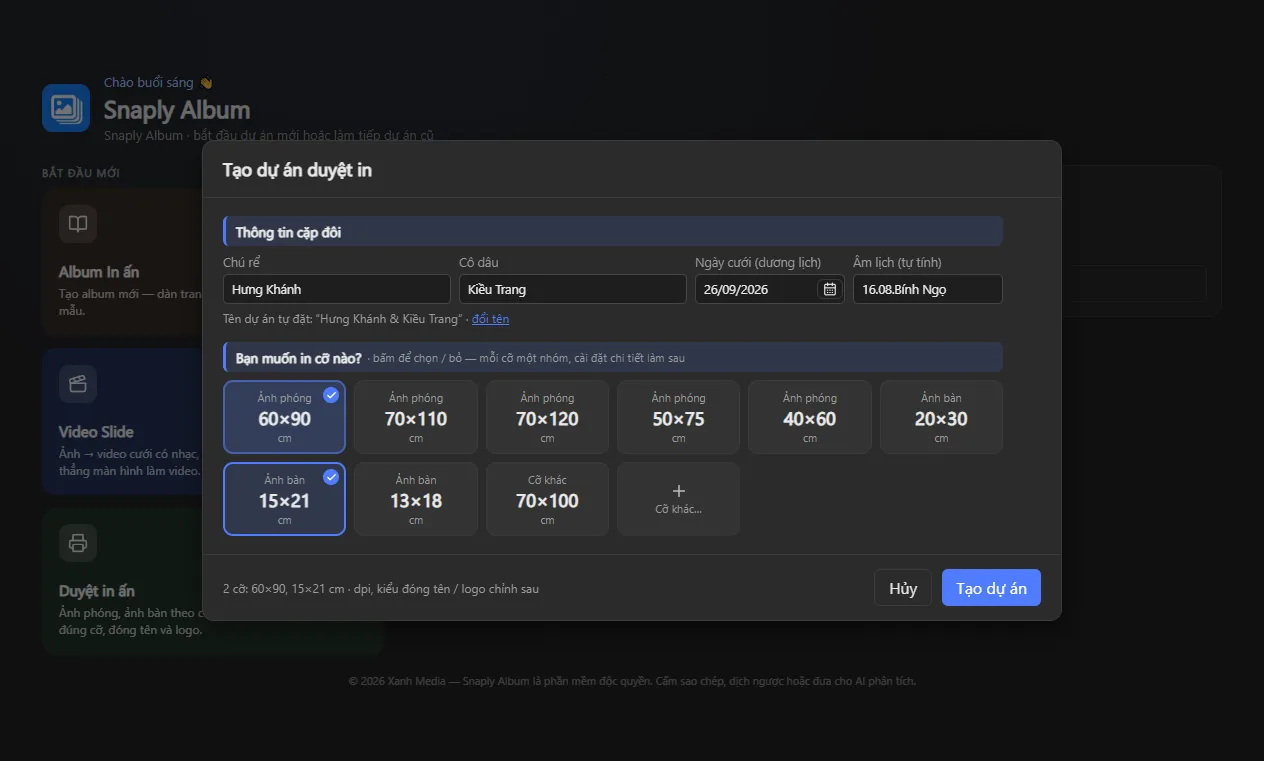
Create a print project
- On the start screen, choose the Print crop, Mockup, Gate photo templates card and enter the groom's and bride's names and the wedding date.
- Add photos and choose print sizes — sheets are organized into size groups.
- Print photos always fill the page; drag to adjust the crop area.
Name block, logo, lunar date
- Turn on Stamp this photo to add a name + logo block; quickly enter the names and date right below.
- The lunar date is calculated automatically from the wedding date and can be turned on / off as you like.
- Click Apply to all photos in the group to use the same settings for the whole size group.
- You can import name block templates from your studio's PSDs.
Print templates and mockups
The Design tab has print templates you can apply to a single sheet or a whole group. Click View mockup to place the print into a real scene (wall frame, wedding gate easel, desk frame…) and export a JPG for client approval.
See also: all features · help center · download Snaply Album.