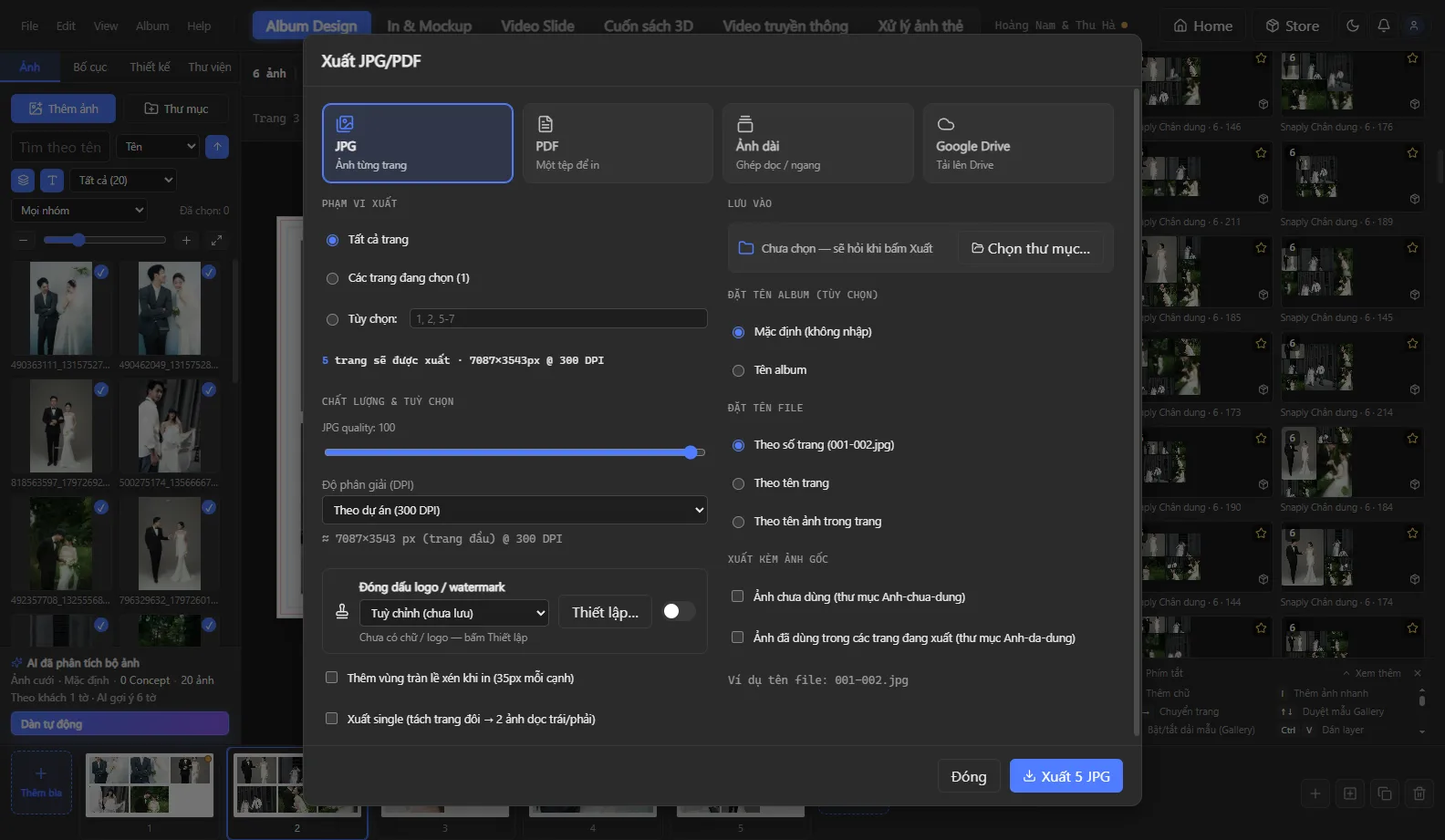
Send proofs to clients without worrying that the photos will be used before payment: turn on Watermark right in the Export dialog.
Steps
- Open Export album. Below the DPI option there is a Watermark row with an on / off switch.
- Click Settings to open the watermark editor.
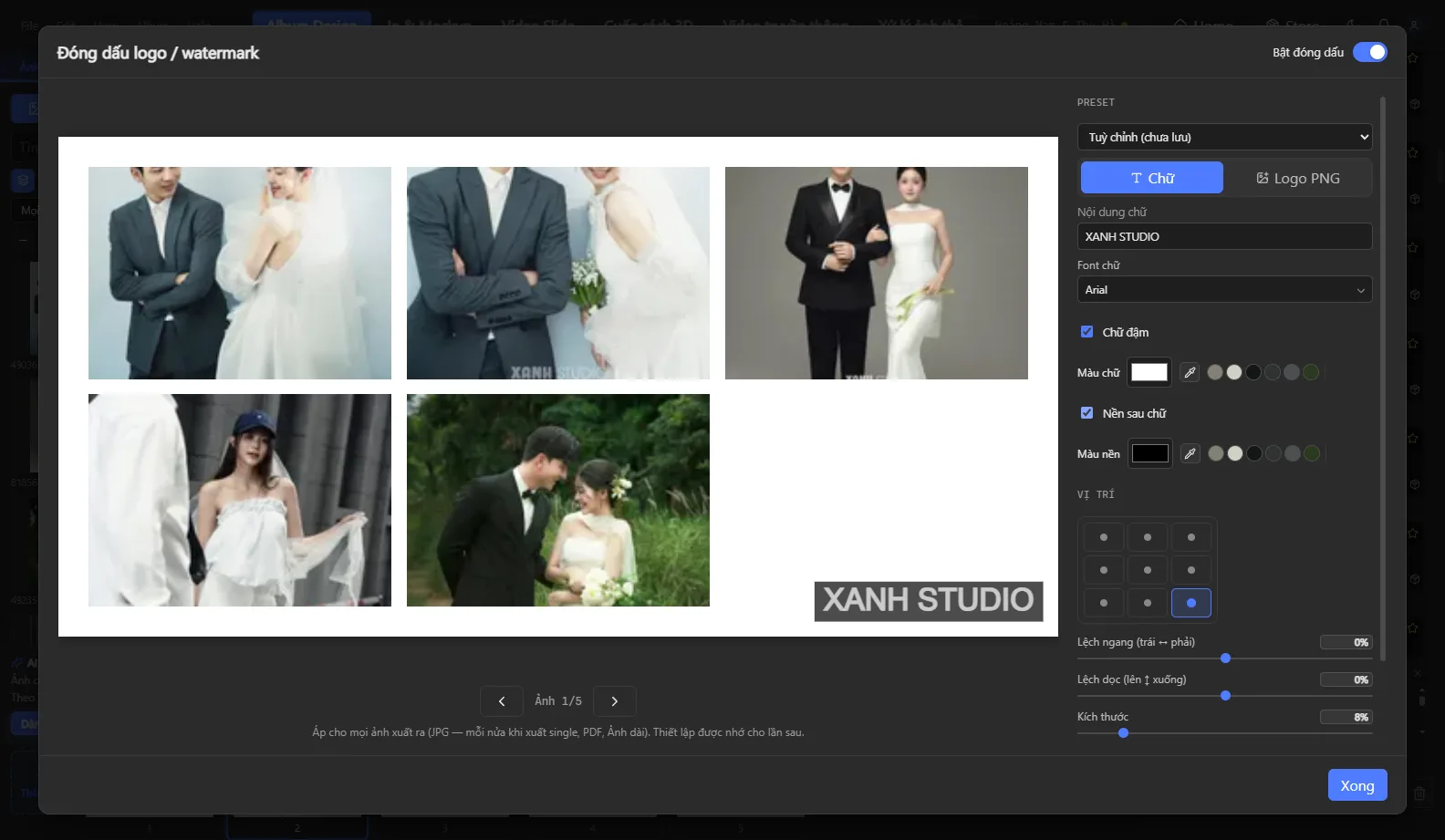
- Choose Text (type your text, choose the font, color, bold and a background behind the text) or PNG logo (pick a file from your computer; you can recolor the logo).
- Choose 1 of 9 positions, then fine-tune the horizontal / vertical offset, size and opacity.
- Preview it on the actual images you are about to export; press ←/→ to change the preview image.
Save presets
In the preset box, choose + New preset… and give it a name (for example “Proof – logo bottom right”, “Facebook post – centered text”). Next time, just pick the preset and export.
Which formats does it apply to?
The watermark is applied to every exported image: per-page JPG, PDF and long images. Turn the switch off when exporting the print version for your print lab.
See also: all features · help center · download Snaply Album.