No need to open Photoshop for basic skin retouching: Snaply Album retouches skin face by face using 478 facial landmarks, applied both on the canvas and in the print output.
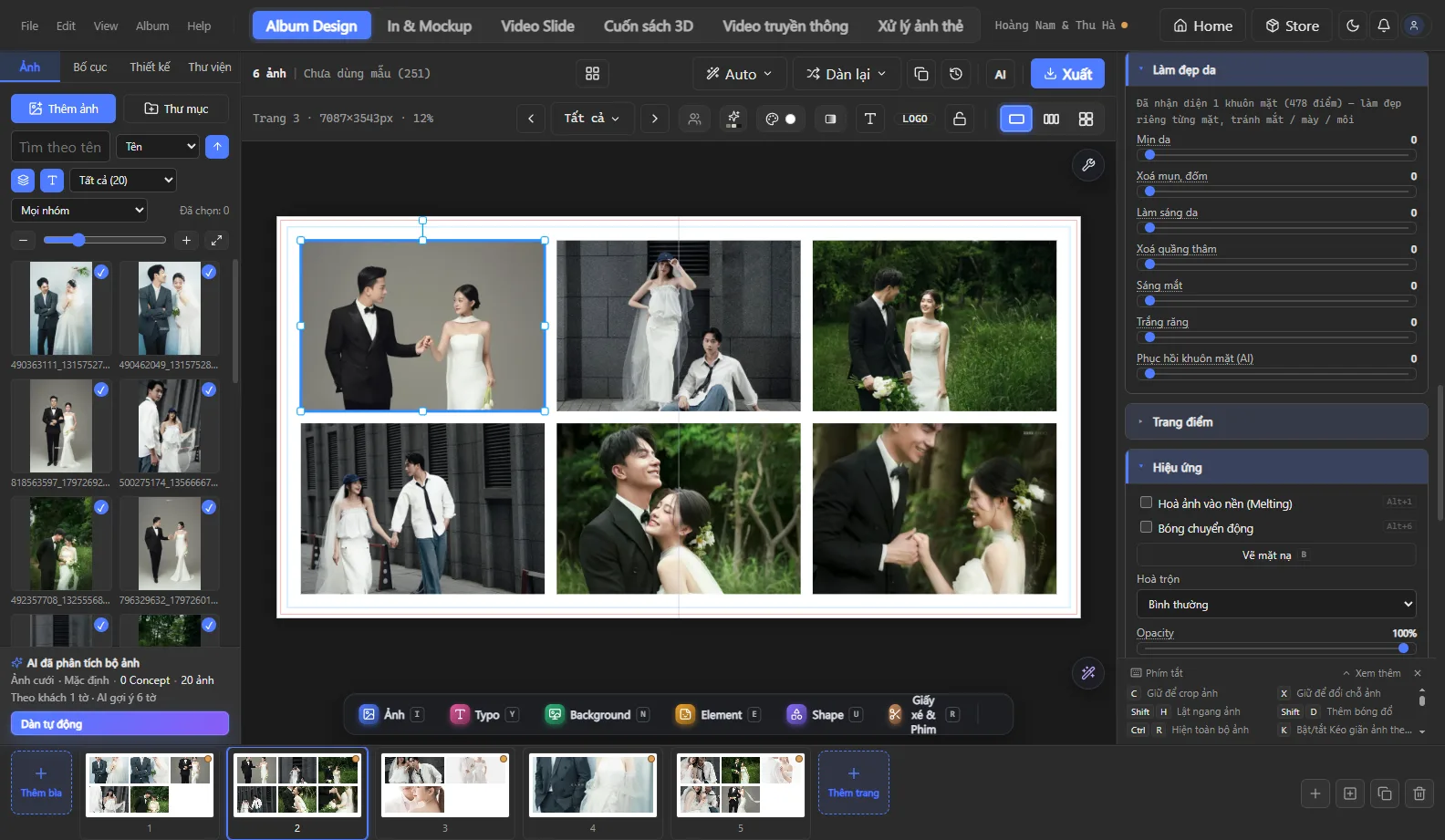
Skin retouching
- Select a photo and open the Skin retouch section in the Properties panel.
- For couple / group photos: select the face to adjust.
- Drag the Smooth skin, Remove blemishes, Brighten skin sliders; add Reduce dark circles, Brighten eyes, Whiten teeth if needed.
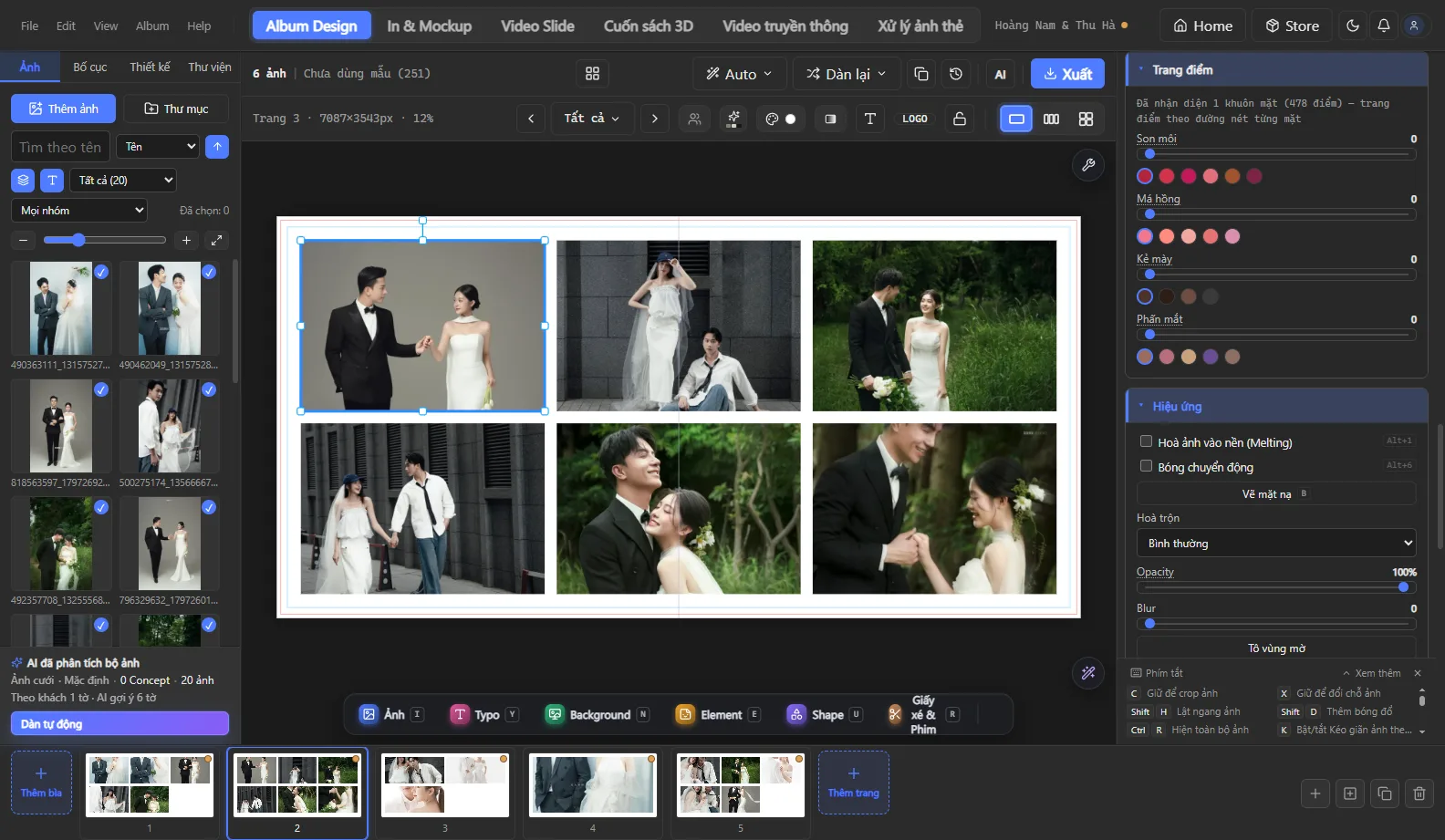
Makeup
The Makeup section includes lipstick, blush, brows and eyeshadow — choose the color and intensity for each face. Keep it subtle to look natural.
AI face restoration
Photos with blurry faces (shot from far away, camera shake) can use Face restoration: AI sharpens the eyes and lips on Snaply's GPU server and returns the photo.
Notes
- Sliders always stay smooth; the full-quality result is computed when you stop dragging.
- All edits are non-destructive — click “Original” to compare.
See also: all features · help center · download Snaply Album.