Slow wedding album design is rarely about a lack of skill — it's about a workflow full of repetitive steps: opening each photo, aligning each frame, exporting each page. Below is the 6-step workflow many studios use to design wedding albums fast. It works with most software and is especially effective with Snaply Album.
Step 1: Select photos first, design second
Don't select and design at the same time. Finish culling the photo set for the album first (usually 60–150 photos for a 20–40 page album) and flag a few “hero” shots for the opening and closing pages. Once the set is locked, layout goes faster and needs less rework.
Step 2: Auto layout with a template set
Instead of laying out pages one at a time, let the software lay out the whole album. In Snaply Album, Auto Design with template sets places every photo into layouts that share one style, varies layouts between pages to avoid monotony and keeps faces in frame when cropping. Your first draft is ready in seconds.
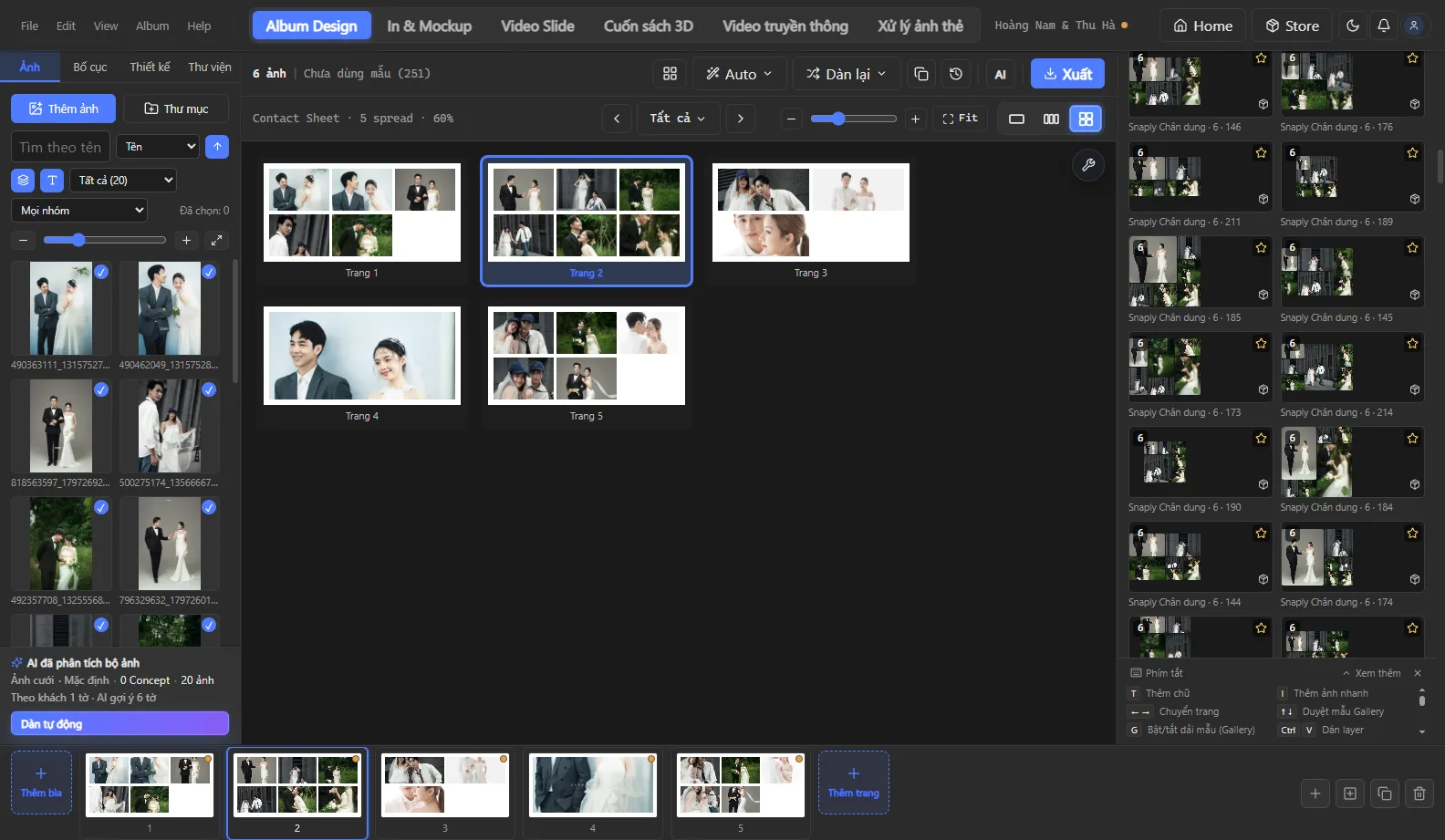
Step 3: Fine-tune in multi-spread view
View several spreads at once to see the rhythm of the whole album. In this view you can drag photos from one page to another to swap them, or select a photo and adjust its position in the frame right from the right sidebar — without opening each page.
Step 4: Add text, decorations and color
- Text: the couple's names, the wedding date, a quote — with more than 1,000 built-in fonts, including handwritten scripts.
- Decorative typography: use AI typography to create artistic lettering with a transparent background from a single sentence.
- Color: apply a consistent color filter across the whole album so photos shot in different settings still look cohesive.
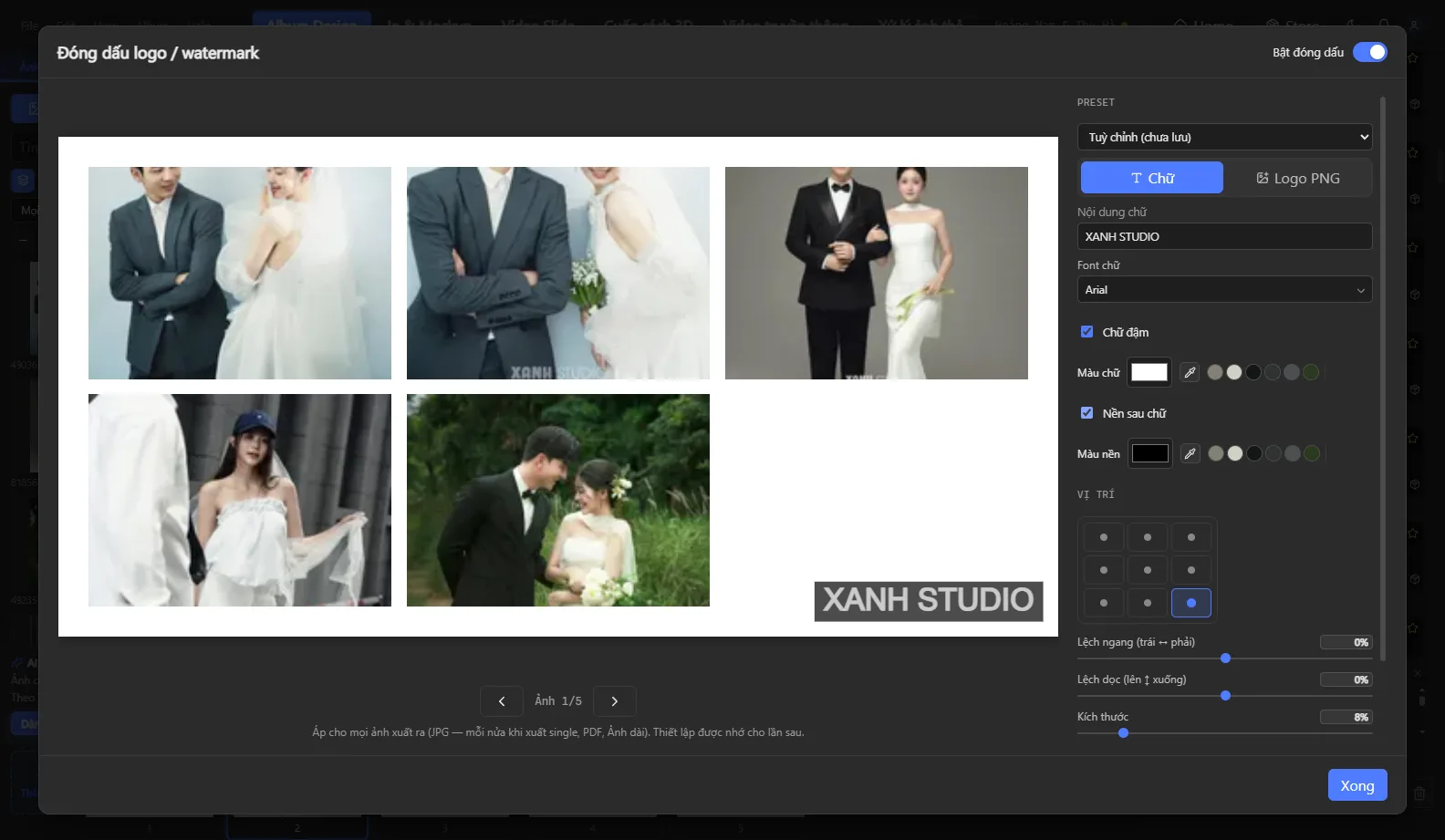
Step 5: Send watermarked proofs to clients
Export a proofing version with a Watermark (text or PNG, with adjustable position and opacity) so clients can review the album but can't use the photos before paying. If possible, include a 3D book preview so clients can picture the real album.
Step 6: Export print files for the whole album at once
Once the client approves, export every spread to JPG or PDF at the DPI your print lab requires. Double-check the safe margins and the spine before sending.
Time-saving tips for wedding season
- Save the pages you love as your own templates to reuse for future clients.
- Import your old PSD template library as ready-to-use templates instead of rebuilding them.
- Create a slideshow video straight from the approved album — it takes almost no extra work.
Want to try this workflow with your own photos? Download Snaply Album or read more on how to choose wedding album design software.