Whether it is a wedding, family or baby album, a beautiful album follows a few shared principles: fewer but stronger photos, a sense of rhythm, consistent color and sharp printing. Here is the full process.
Step 1: Choose the size and page type
Popular sizes are 25×35 cm (portrait), 30×30 cm (square) or 30×40 cm. Decide early whether the album uses spreads (opening into one large landscape image) or single pages, because the layouts work differently. See the full table in popular album sizes and DPI.
Step 2: Select photos — fewer but stronger
A 20–30 spread album usually needs 60–120 photos. Drop near-duplicates, keep the emotional moments, and pick a few really strong "hero" shots for the opening and closing pages. Starting from thousands of RAW files? See how to cull photos fast.
Step 3: Lay out pages with rhythm
- Alternate single large photo pages with multi-photo pages so the eye can rest.
- Keep photos from the same moment (getting ready, ceremony, party…) on the same or adjacent pages.
- Pair portrait with portrait and landscape with landscape — pages look much cleaner.
- Use little, well-chosen text: names, date, one short line; don't let text compete with the photos.
Step 4: Use automatic layout to save time
In Snaply Album, Auto Design analyzes the photo set, groups photos by concept and proposes the whole book: choose single pages or spreads, the album rhythm (more photos, balanced, more hero spreads) and how creative it should be, then preview every spread before applying. Lock the spreads you like and regenerate the rest.
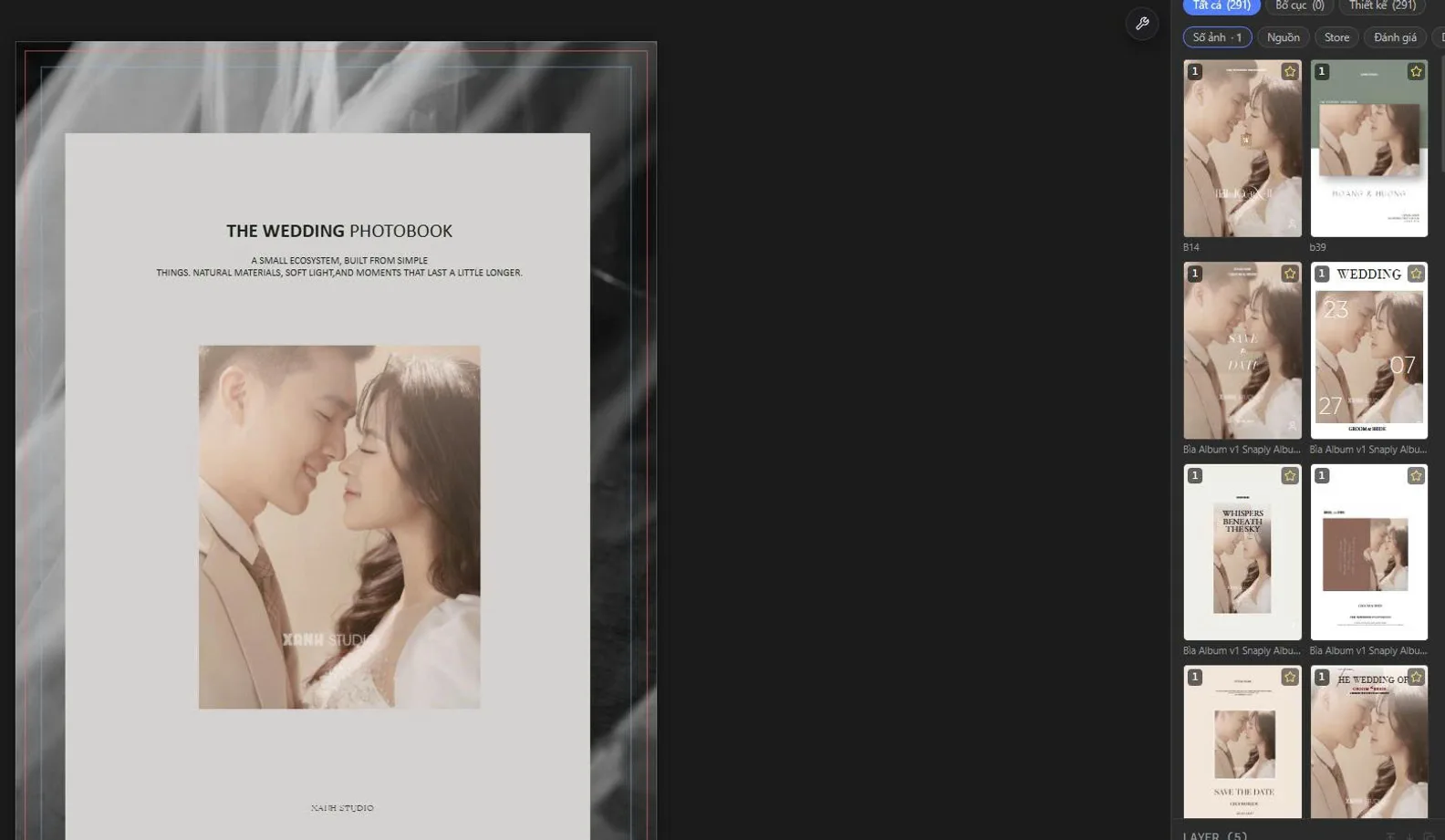
Step 5: Design the cover
The cover is the first thing the client sees. Great covers usually use one photo, plenty of white space and small, refined names and date. Snaply Album includes ready-made cover templates you can apply to your photo and then edit the text.
Step 6: Match colors and export for print
- Grade the whole set consistently (same temperature, same brightness) so turning pages doesn't jump in tone.
- Export at the DPI your print lab requires (usually 300) and check warnings for missing fonts or low-resolution photos before sending.
- Export a watermarked preview for the client to approve.
Want a video from the same album? See wedding slideshow trends for 2026. Or download Snaply Album to get started.