Choosing the wrong size or setting the wrong resolution is the most common reason an album prints blurry, loses text near the edge or has to be redone. This article covers the most popular wedding album sizes and how to set DPI correctly from the start.
Common wedding album sizes
The sizes below are for a single page; a spread is twice as wide.
| Page size | Orientation | Pixels at 300 DPI (one page) | Typically used for |
|---|---|---|---|
| 20 × 30 cm | Portrait | 2362 × 3543 px | Family albums, parent albums |
| 25 × 35 cm | Portrait | 2953 × 4134 px | Main wedding album |
| 30 × 30 cm | Square | 3543 × 3543 px | Modern-style wedding albums |
| 25 × 25 cm | Square | 2953 × 2953 px | Small albums, gift albums |
| 30 × 40 cm | Portrait | 3543 × 4724 px | Large premium albums |
| 35 × 25 cm | Landscape | 4134 × 2953 px | Landscape and pre-wedding albums |
Formula: pixels = (cm ÷ 2.54) × DPI. For example, 30 cm at 300 DPI = 30 ÷ 2.54 × 300 ≈ 3543 px.
What DPI should you use?
- 300 DPI: the safe standard for hand-held albums viewed up close.
- Above 300: only when the print lab asks for it; files get heavier while the difference is hard to see with the naked eye.
- Wall-mounted enlargements viewed from a distance can go lower — see wedding entrance (gate) photo and enlargement sizes.
In Snaply Album, when you create a print album, DPI is suggested automatically based on the size; you can still change it at export (click "@ DPI" on the canvas toolbar or pick it in the Export dialog).
Safe margins and bleed
- Bleed: the part of the image that extends beyond the trim line, usually 3 mm per side, so no white edge shows after trimming.
- Safe margin: the area about 5 mm inside the trim line — text, faces and logos should stay within it.
- Spine (gutter): on a spread, avoid placing a face right on the center fold.
Snaply Album shows the bleed line and the page center line on the canvas, and Auto Design also avoids placing near-duplicate photos across the spine.
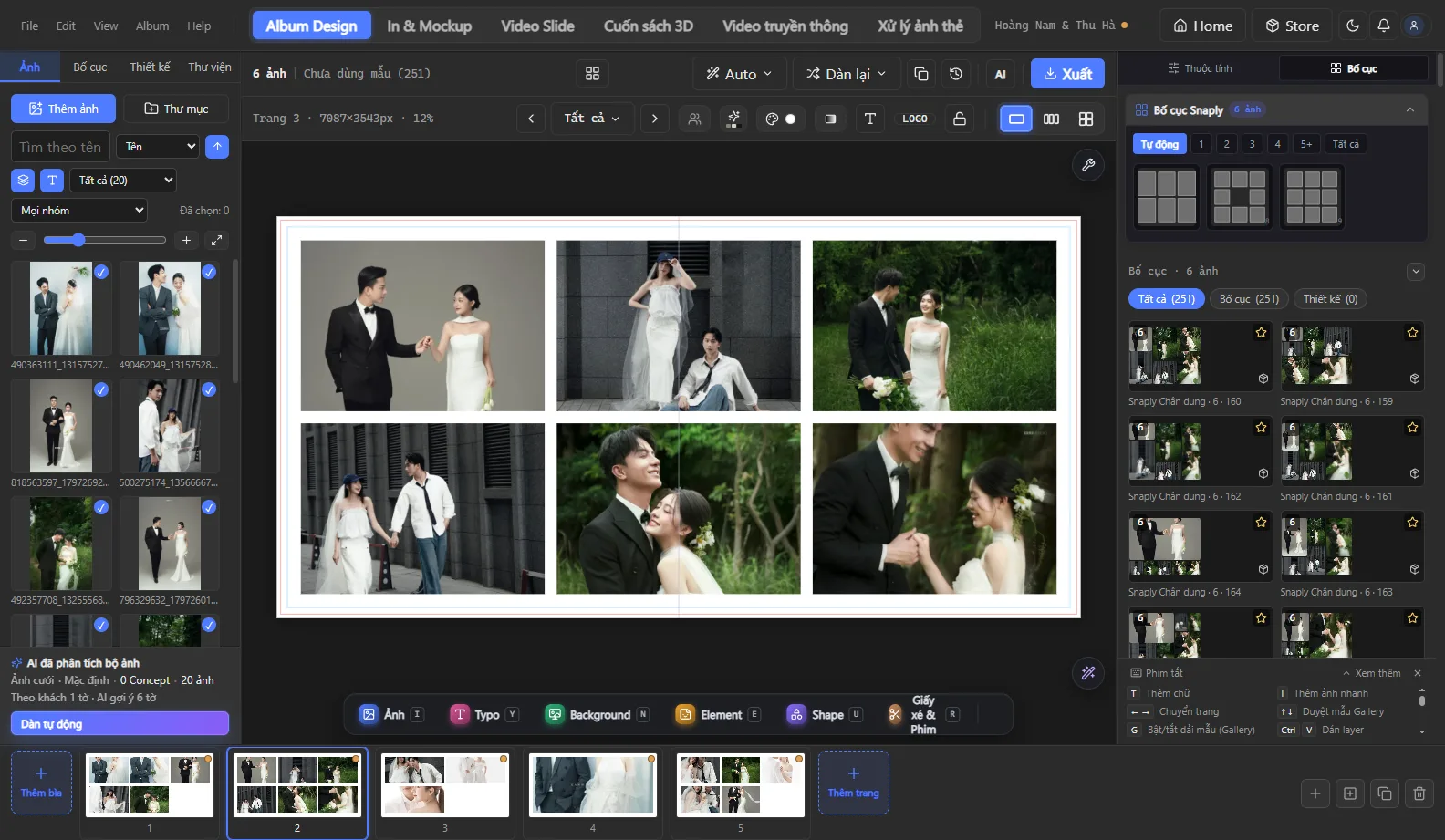
Exporting files for the print lab
- Ask the print lab for the size, DPI, bleed and format (JPG per spread or PDF).
- Export all spreads at once and name them by page number so the lab assembles them in the right order.
- Check the warnings before exporting: missing fonts, low-resolution photos.
- For the client proofing version, turn on the watermark; for the print lab version, turn it off.
See also the fast wedding album workflow or download Snaply Album.